KLARWERK / 1.0.0
Getting started with Klarwerk 1.0.0
Choose between the installer and portable edition, review your first analysis and learn which files the app keeps on your PC.
This guide is based on the README included with Klarwerk 1.0.0 and real screenshots of the application.
Which edition should I download?
Choose the EXE installer for a regular setup with a wizard. The portable ZIP runs without installation from an extracted folder. Both editions are free and require 64-bit Windows 8.1, 10 or 11.
Starting the portable edition
Extract the entire ZIP to a folder or USB drive. Open Klarwerk.exe inside the included Klarwerk folder. Do not copy only the EXE out of the archive; keep the package files together. According to the README, Windows asks for administrator rights.
Where are portable settings and backups stored?
Portable means the app can run without installation. The version 1.0.0 README says settings and backups are stored on the current PC under %APPDATA%\Klarwerk. Do not assume these files travel with your USB drive. Legal texts are in the legal folder inside the package.
Reviewing the first system analysis
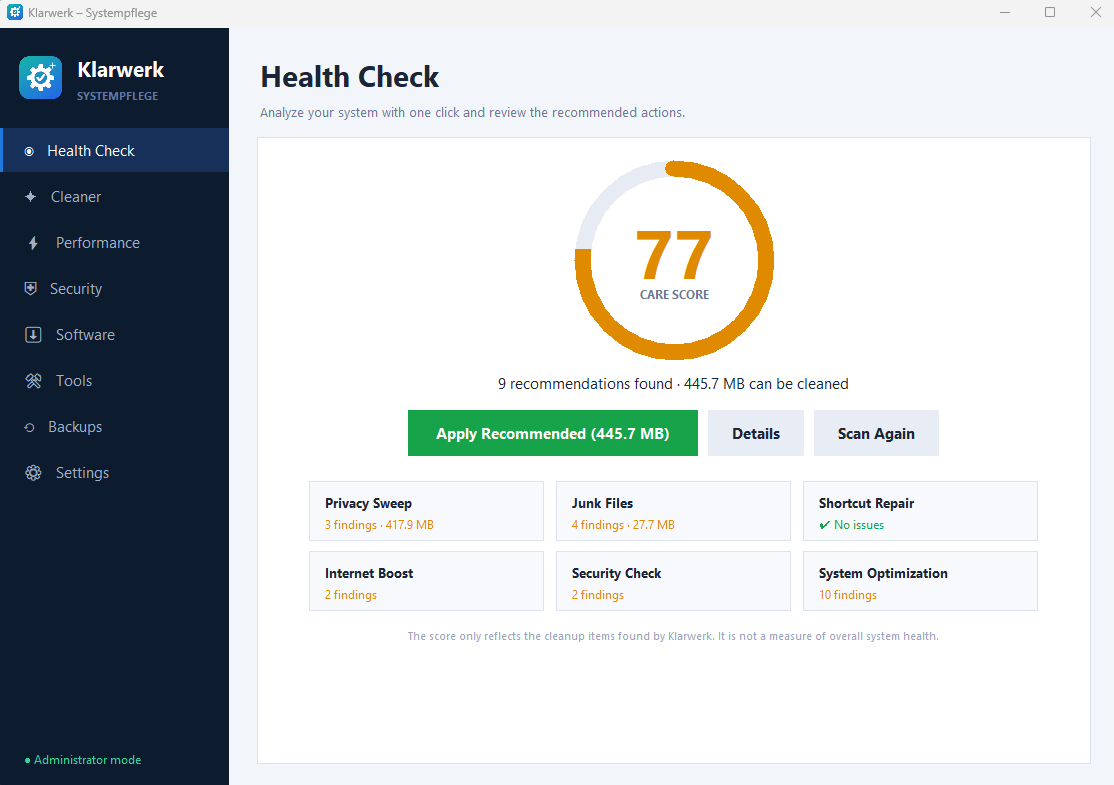
Start the analysis in Health Check and review the recommendations. Details opens the breakdown; Scan Again repeats the analysis. The care score relates to cleanup items found by Klarwerk, and is not a measure of your PC’s overall health or security.
Choosing cleanup categories
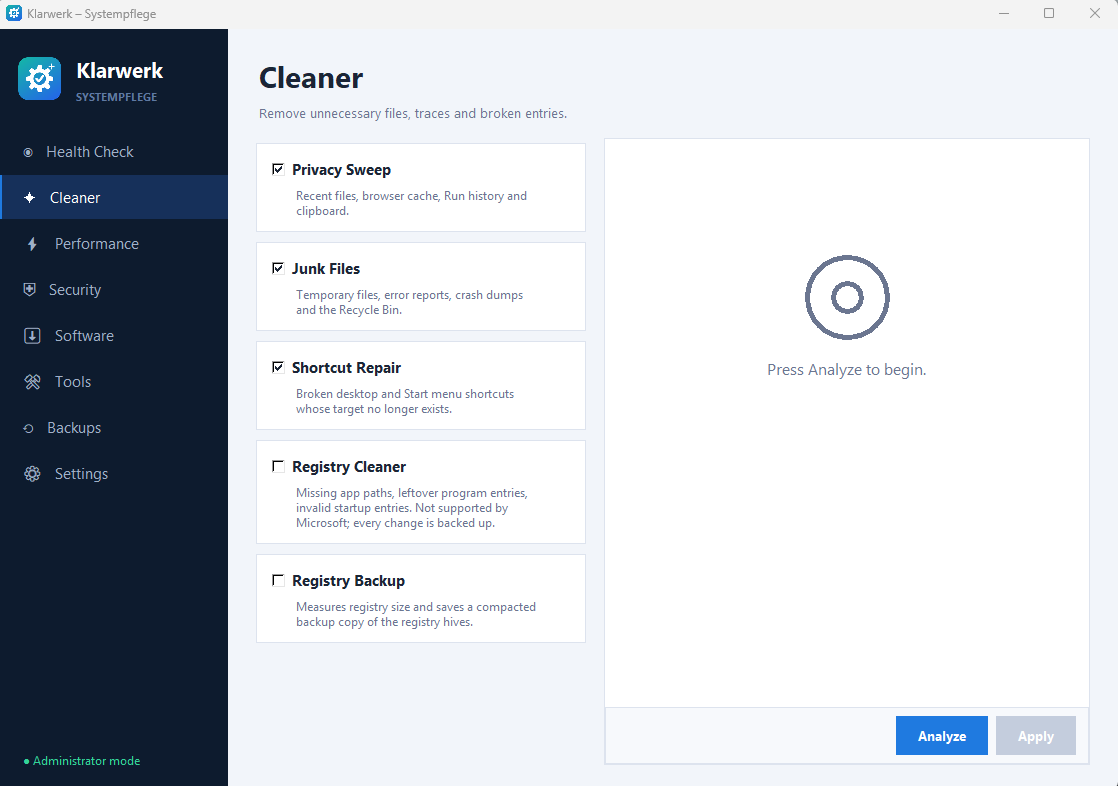
Cleaner includes categories such as Privacy Sweep, Junk Files and Shortcut Repair. Review the results with Analyze before deciding what to apply. Registry Cleaner is a separate option; it is not selected by default in the supplied screenshot.
Startup apps and large files
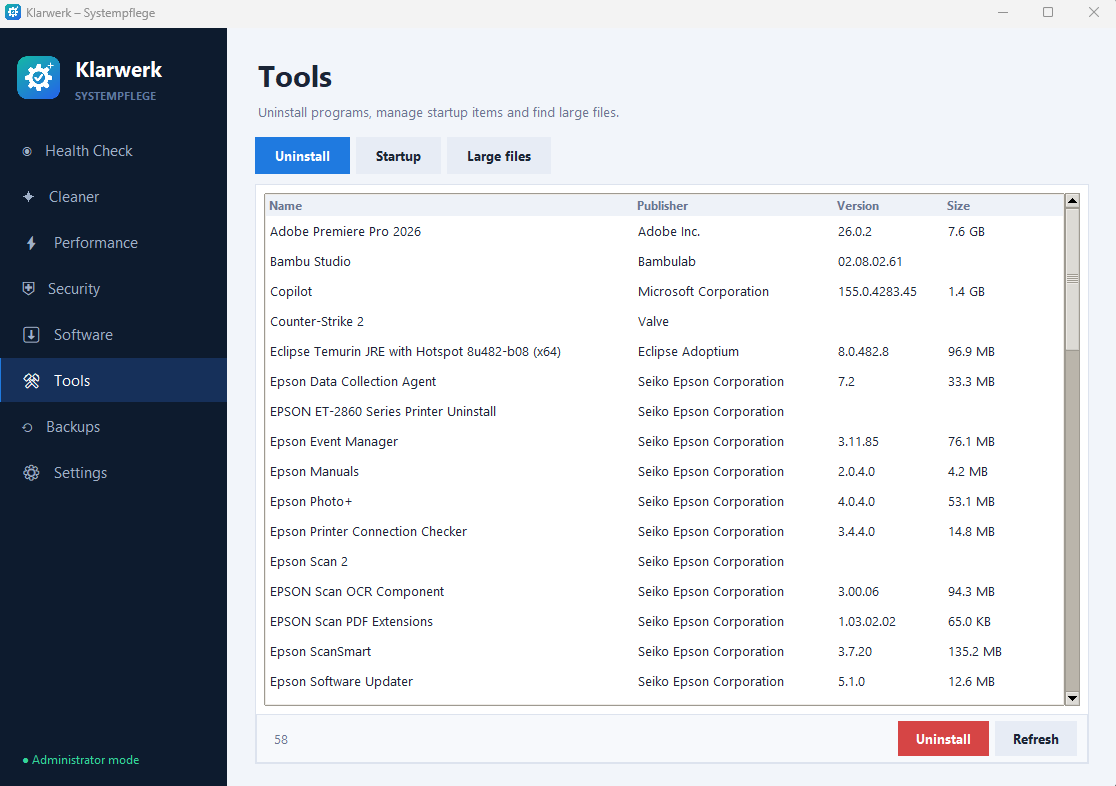
Tools contains Uninstall, Startup and Large files tabs. Review installed apps, manage startup entries and locate large files. Avoid deleting unfamiliar files or programs solely because of their size.
Language and safety options
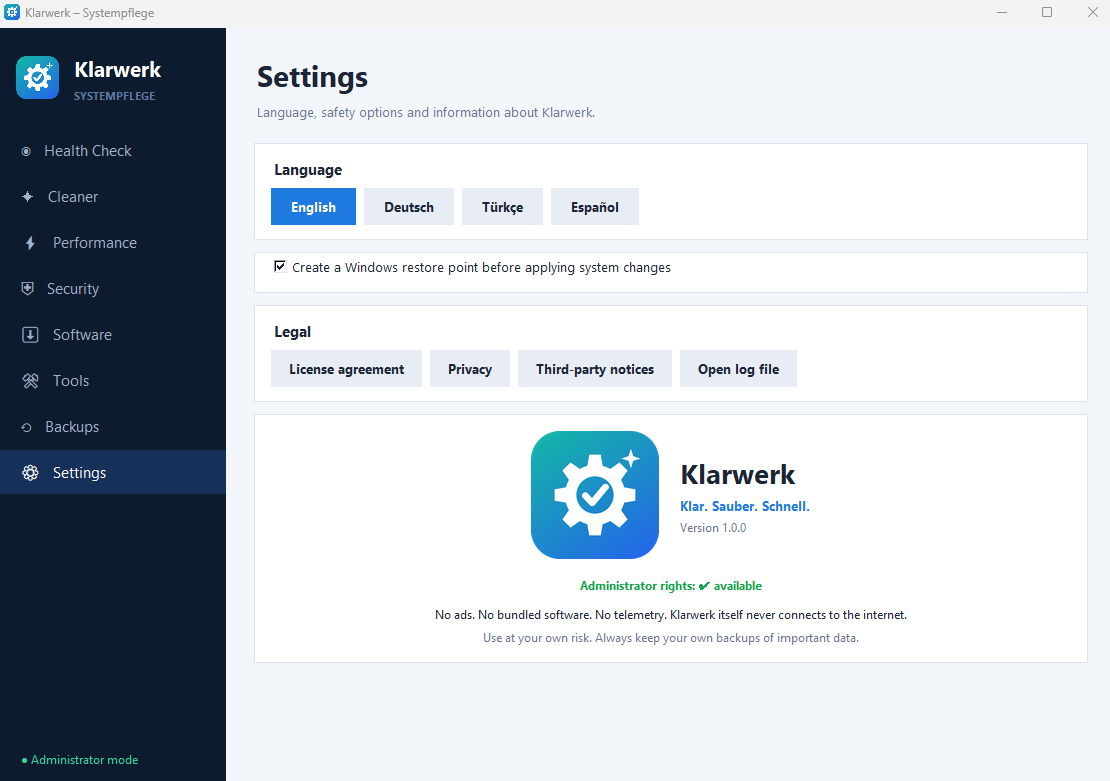
Settings lets you choose English, Deutsch, Türkçe or Español. Review the option to create a Windows restore point before system changes. Backup and restore coverage can vary by operation; do not assume every deletion or uninstall can be undone.
Before reporting a problem
Note the app version, edition and Windows version. Share the exact error message where possible. Remove private file paths or personal information from screenshots before sending them. Klarwerk is not an antivirus; keep your own copies of important files.